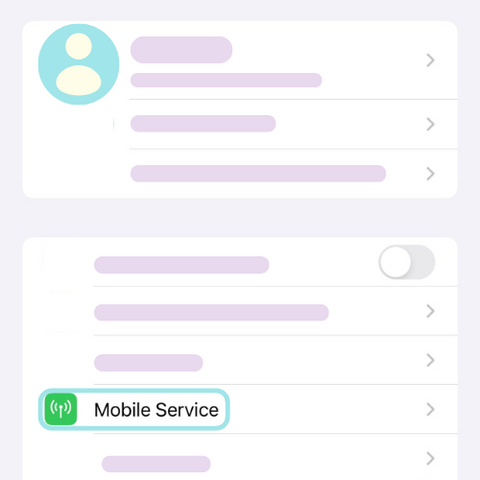
Step 1: Open the iPhone Settings app and tap Mobile Data

Step 1: Open the Settings App

Unlock your iPhone and go to the Settings app. Scroll down and tap Mobile Data (or Cellular in some regions).

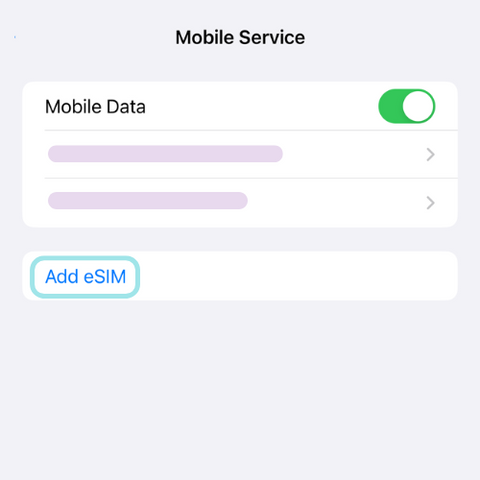
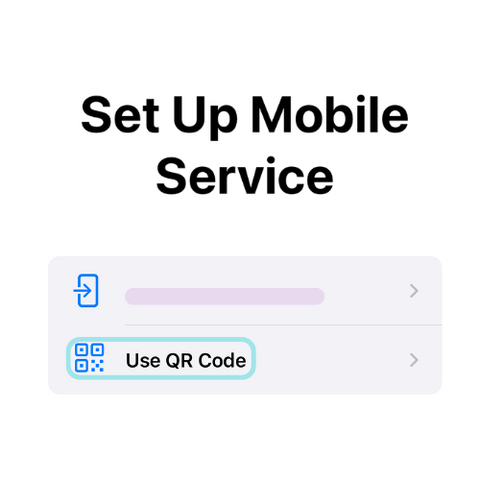
Step 2: Add eSIM on iPhone and select Use QR Code

Step 2: Add an eSIM for Data

In the Mobile Data settings, tap Add eSIM. Select Use QR Code to start the eSIM installation process.

Step 3: Retrieve your Blikst eSIM QR code from your email

Step 3: Retrieve Your eSIM QR Code

Open the email you received with your eSIM QR code. Ensure your iPhone is connected to Wi-Fi or another mobile data source for the setup.

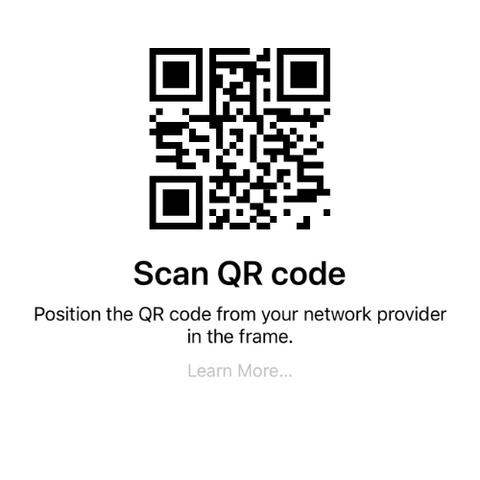
Step 4: Scan the eSIM QR code with your iPhone camera

Step 4: Scan the eSIM QR Code

Use your iPhone's camera to scan the QR code from the email. If you have a printed copy, scan the QR code from the paper.

Step 5: Install the eSIM on iPhone and add the mobile data plan

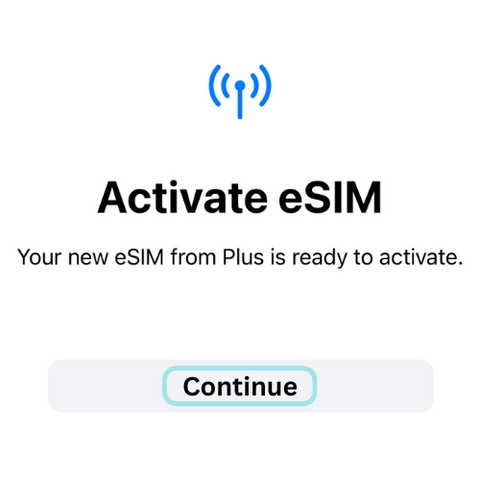
Step 5: Install Your eSIM on iPhone

After scanning, tap Continue and follow the on-screen instructions. Tap Add Mobile Data Plan to proceed.

Step 6: Set your eSIM as the primary mobile data plan for travel

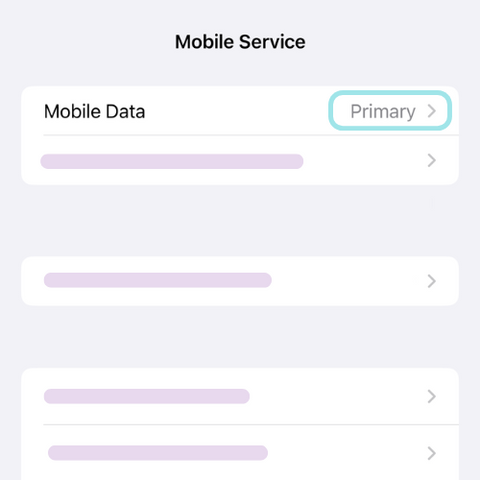
Step 6: Mark eSIM as Primary

Choose your eSIM data plan as the primary option for your travel data.

Step 7: Turn off Allow Mobile Data Switching on iPhone

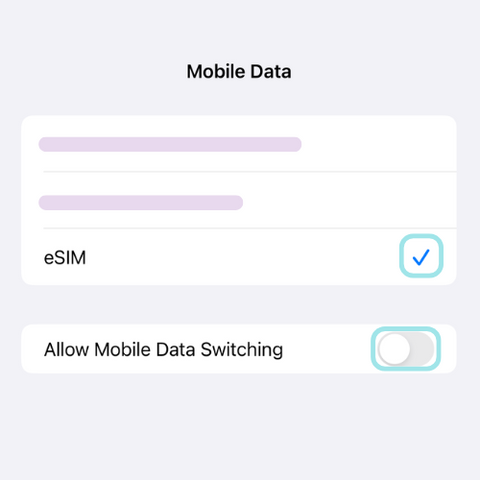
Step 7: Turn Off Data Switching

To prevent your iPhone from switching back to another SIM, disable Allow Mobile Data Switching. This ensures your eSIM is used exclusively for data.

Step 8: Enable Data Roaming on iPhone for international travel

Step 8: Enable Data Roaming for Travel

If you're using your eSIM for international travel, go to the Mobile Data settings. Tap your eSIM plan and toggle Data Roaming ON for uninterrupted connectivity.

FAQs

If your eSIM isn’t activating, try the following: 1. Ensure your device is eSIM-compatible and unlocked. 2. Check if your Wi-Fi or mobile data is turned on during activation. 3. Make sure airplane mode is off. 4. Enable mobile data and roaming in network settings. 5. Restart your device and try reactivating your eSIM. If issues persist, contact Blikst customer support for assistance.

No, eSIMs are device-specific and cannot be transferred once activated. If you switch to a new device, you’ll need to purchase a new eSIM plan and install it separately. Some carriers allow reinstallation, but Blikst follows industry standards for one-time activation per device.

After purchasing a Blikst eSIM, you will receive a QR code via email. Simply scan the QR code with your eSIM-compatible device to install and activate your plan. There’s no need for a physical SIM card—just scan, connect, and start using your data instantly. If your device doesn’t support QR code scanning, you can manually enter the eSIM activation details provided in the email.